Make a presentation on the Topic - INPUT DEVICES & OUTPUT DEVICES CLASS IX
INPUT DEVICES
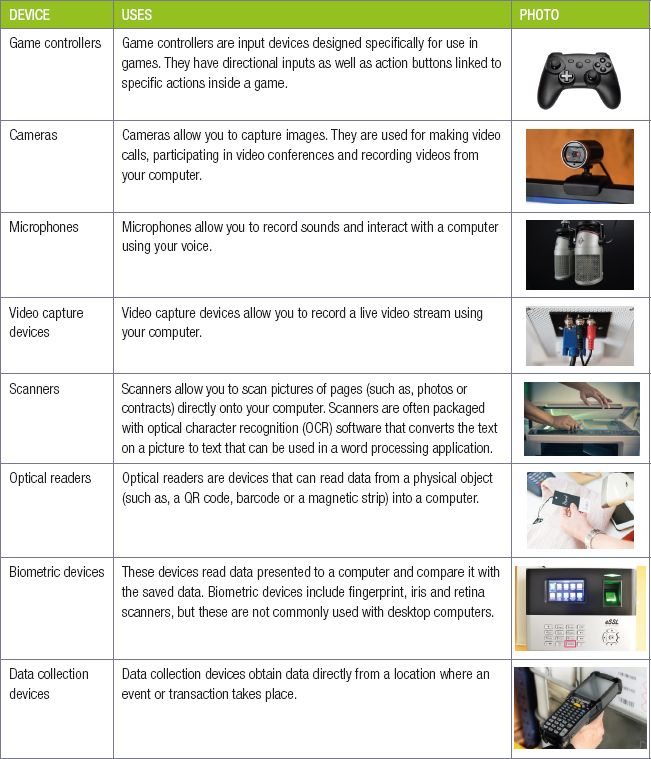
An input device allows the user to interact directly with a computer. The devices give data and instructions to the computer, such as:
- keyboards
- pointing devices (mouse)
- touchscreens
- touchpads
- tablet/pen input devices
- game controllers
- cameras
- microphones
- video capture devices
- scanners
- optical readers
- biometric devices
- data collection devices
Input devices
Output devices
An output device is any device that takes data stored on a computer and makes it available to the user in an easy to understand way. This data may be made available using pictures (such as on a monitor or printed to a page) or using sounds (such as with speakers and earphones). The output devices can be divided into the following:
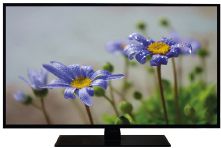
- display devices – monitors (LCD, LED)
- printers (Inkjet, Ink tank, Laser, 3-D)
- data projectors (HDMI, VGA)
- speakers.

DISPLAY DEVICES
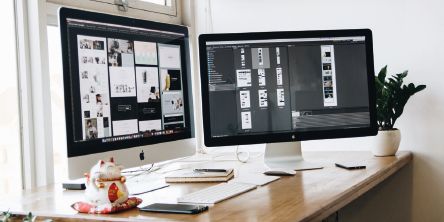
MONITORS
All computer software is built around a visual representation of data, therefore the monitor is one of the most important output devices for any computer. To check the quality of a monitor, we need to look at some important characteristics.
These are:
- Number of pixels: Each pixel can be seen as a tiny dot of colour on the monitor. Pixels put together creates the picture that we see on the monitor. The more pixels there are, the more detailed a picture can be. A good monitor is a full HD monitor with 1 920 pixels across the width of the monitor by 1 080 pixels across the height of the monitor. Some modern monitors can have up to 3 840 × 2 160 pixels (called 4K).
- Screen size: The size of a monitor is measured diagonally (that is, from the top left corner to the bottom right corner) and the size is given in inches.
- Refresh rate: The refresh rate of a monitor determines how quickly the image on the monitor can be updated with the newest information. Most monitors have a refresh rate of 60 Hz.
- Contrast ratio: A measure of the number of shades the monitor can show between its blackest black and brightest white. The higher the number of shades, the clearer and sharper the images will be, and the brighter and truer to life the colours will be.
- Aspect ratio: This is the basic shape of the screen based on the ratio of the width to the height measured in inches. For example, if a screen is 16 inches (40,6 cm) wide and 10 inches (25,4 cm) tall, the aspect ratio is 16:10.

Did you know
One inch is roughly 2,5 cm long, so a 24-inch monitor has a diagonal length of 24 × 2,5 cm = 60 cm.
- Brightness: Brightness is the perception of how intense or bright the light coming from a screen is. The brighter the light, the more power will be drawn from the computer.
PRINTERS
A printer allows a computer to use data and output it to paper. There are three main types of printers. These are:
- Dot-matrix printers: These printers use a series of small pins to strike a ribbon coated with ink, causing the ink to transfer to the paper at the point of impact. Dot-matrix printers are mostly outdated as a personal printer but are still used in banks and manufacturing businesses where it is necessary to use carbon paper to produce multiple copies of a document.
- Ink-jet printers: An inkjet printer operates by painting an image using a spray of ink. This is done by hundreds of tiny nozzles that spray drops of ink directly onto the paper while moving across it. There are two types of ink-jet printers: continuous printers that are usually used for commercial purposes; and on-demand printers. It is a good, all-round printer that is most commonly used for smaller jobs. They are however slightly less reliable.
- Laser printers: A laser printer is a popular printer for personal use. These printers use electrostatic technology. To start the process, the drum is given a positive electrical charge and while it rotates, the printer shines a narrow laser beam over its surface, drawing or projecting the letters and images to be printed as a pattern of electrical charges onto the surface of the drum. When the pattern is set, the drum is rolled in toner, which sticks to certain parts of the drum, that is, the image. When rolled over a piece of paper, this image is ‘burned’ into the paper with heat and pressure. When the printing is done, the electrical charge is removed from the drum and the excess toner is collected. Laser printers are used for mass production printing because they are generally faster and more reliable but with worse quality prints.
- Ink-tank printer: These printers have print heads built into the printer and u se an integrated bulk ink system. This means that ink is supplied continuously to the print head from an ink tank within the printer itself, no expensive cartridges are needed. When the ink is finished, it can be refilled from an ink bottle. Because of this, printing costs are much lower. They produce low-cost, high volume printing.

New words
tactile device – a device that makes use of touch
carbon paper – thin paper coated with carbon or another pigmented substance, used for making a second impression of a document as it is being written or typed
electrostatic technology – uses stationary electric charges instead of electric currents
toner – a very fine, dry, black powder-type of ink
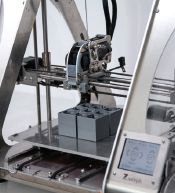
- 3D printers: 3D printing is a process of making three dimensional solid objects from a digital file. The creation of a 3D printed object is achieved by laying down successive layers of material until the object is created. Each of these layers can be seen as a thinly sliced horizontal cross-section of the eventual object e.g. prosthetics and movie props.
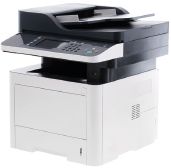
When evaluating printers, it is important to know what the printer will be used for because different printers are good at different things.
Factors to consider when looking for a printer are whether it is black and white and/or colour, how quickly it can print, and how much it costs to print a page.
Other factors to consider include:
- Dots per inch (DPI) measures how many dots a printer can print in one inch (or 2.54 cm). The higher the DPI, the more detailed the prints.
- Pages per minute (PPM) measures how many pages of black text a printer can print in a minute. The higher the PPM, the faster the printer can print.
DATA PROJECTORS
Projectors use a bright light to project the content displayed on a computer monitor onto any flat surface. One example of where projectors are used is at the cinema. They use large, high quality projectors to display the movie on the screen in front of you. However, projectors can also be connected to computers at home or in office settings, to display your computer’s screen on a wall or screen.
There are two types of cables connecting video output devices:
- VGA – an analog video-only connection.
- HDMI – a digital video audio connection.
Projectors provide the following advantages:
- they are easy to carry around
- they display the content from your computer at a large size.
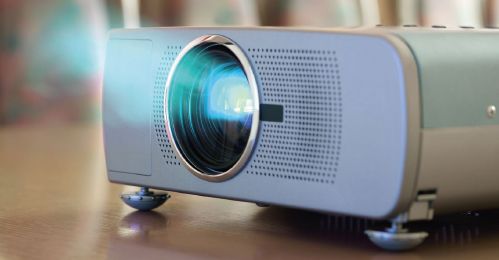
However, projectors also have disadvantages:
- replacing the lamps is expensive
- low-quality projectors can show washed-out or faded images
- low-brightness projectors need to be placed close to the screen, decreasing the size of the image
- low-brightness projectors may require a dark room.
The quality of a projector can be measured using three main factors:
- Lumens, which measures the brightness of the projector.
- Resolution, which determines how many pixels can be displayed.
- Contrast ratio, which measures the difference between the darkest and lightest parts of the image (that is, the contrast).
SPEAKERS AND HEADPHONES
Advantages of speakers:
- they can be useful for alerting computer users of events using audio notifications, even when they’re busy
- text can be converted into sound.
Disadvantages of computer speakers:
- they can take up a fair amount of desk-space, compared to headphones.
HEADPHONES
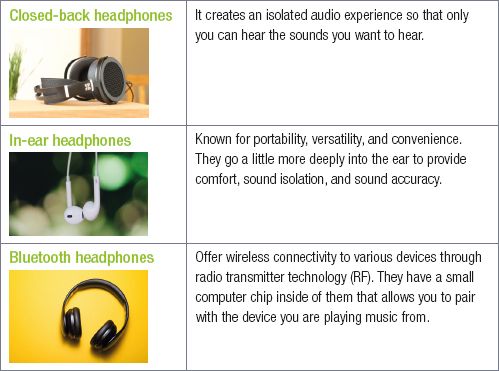
There are many different types of headphones, let’s look at a few popular choices:
INPUT/OUTPUT DEVICES
An input/output device is any hardware used by a human operator or other systems to communicate with a computer. They are capable of sending data (output) to a computer and receiving data from a computer (input).
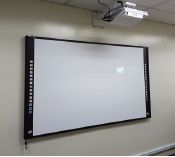
An interactive whiteboard is a board that combines the technologies of a computer, touchscreen, projector and whiteboard. You can connect an interactive whiteboard to one or more laptops, a PC, tablet, or other electronic devices.
When used in a classroom environment, they give learners and teachers opportunities to interact more than the traditional blackboard ever could.
ACCESSIBILITY DEVICES FOR THE DISABLED USER
Alternatives to audio output can assist the computer user who is hearing impaired. For example, a speaker can be useful for visually impaired people in terms of text-to-speech systems.
TYPES OF STORAGE DEVICES
HARD DISK DRIVE (HDD)
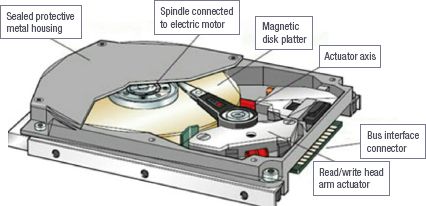
A computer hard disk drive is a secondary storage device consisting of magnetic disks or platters that rotate at high speed. Its main function is to store data permanently by controlling the positioning, reading and writing of data onto the hard disk.
Currently modern hard drives can have huge storage space and are either internal (fixed), or external (portable).
EXTERNAL (PORTABLE) HARD DRIVES
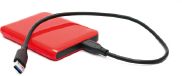
Portable (or external) hard drives are used outside of the computer case.
Portable hard drives are a lot easier to move around than fixed hard drives. However, thanks to USB connectors, they can quickly be connected to different computers and are ideal for transferring large amounts of data or backing up data outside of your computer. They are sensitive to rough handling.
SOLID-STATE DRIVE
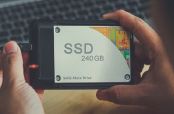
Solid-state drives (or SSDs) are a type of storage device that, unlike hard drives, do not have any moving parts. Instead, SSDs make use of special floating gate transistors to store data electronically. Solid state drives (SSDs) are generally many times faster than normal hard drives. Since SSDs have no moving parts, they are much quieter, more reliable and robust than HDDs. They also generate less heat, thus increasing their life span, and uses less power than an HDD, which means they are more suitable for mobile devices.
HYBRID STORAGE DEVICE
A hybrid storage device is a storage device that combines an HDD with an SSD. By doing this, the hybrid storage device can take advantage of the storage capacity of the HDD as well as the speed of the SSD.
Hybrid drives work by storing commonly used files that require high speeds (such as operating system files) on the faster SSD storage, while storing large, less commonly used files (such as media files) on the high capacity HDD.
FLASH DRIVES (DISKS)
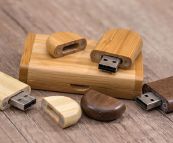
Flash drives are very small, portable storage drives that store information using a similar method to SSD. Flash drives connect to a USB port, which makes it easy to transfer data quickly between devices.
SD/MEMORY CARDS
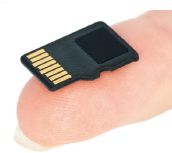
SD/Memory cards (especially MicroSD cards) are tiny electronic storage devices. Because of their small physical size, SD cards are often used in portable devices such as smartphones, tablets and cameras to provide storage capacity.
CD, DVD AND BLU-RAY DRIVES
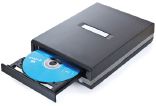
CDs (compact discs), DVDs (digital versatile disc) and Blu-ray discs are popular portable forms of storage that can be read using a dedicated CD, DVD or Blu-ray drive. These discs store information optically, which means the information is stored using lights or electromagnetic waves.
The advantage of writing data to CDs or DVDs is that the discs are affordable. These optical drives are also backwards compatible. This means that a newer optical drive (like a Blu-ray drive), can read all older optical forms (like CDs and DVDs). However, an older optical drive (like a CD drive) can only read CDs.

Nice
ReplyDelete